
Most campaigns aren't one call.
Take a lender reminding customers about an overdue EMI. Somebody calls. If nobody picks up, they try again later. If the customer asks for a message instead, someone sends the payment link on WhatsApp. Then someone checks, a day or two later, whether the payment came in. And if it never does, someone books a field visit.
Every one of those steps is easy. What's hard is that each one waits on the last, for hundreds of people at once. So it lives in a spreadsheet: a "next step" column, an owner, and a status that's always a little out of date.
Campaign Workflows turns that spreadsheet into something that runs by itself. You build the follow-up once: who to call, what to send, what to wait for and what to do next. Then every contact goes through it on their own path, and you can see exactly where each of them is.
Normal or Workflow
When you create a campaign, you now choose how it runs.
- Normal works the way campaigns always have: one agent takes the incoming calls and calls your batches.
- Workflow gives the campaign several steps and several agents, in the order you set.
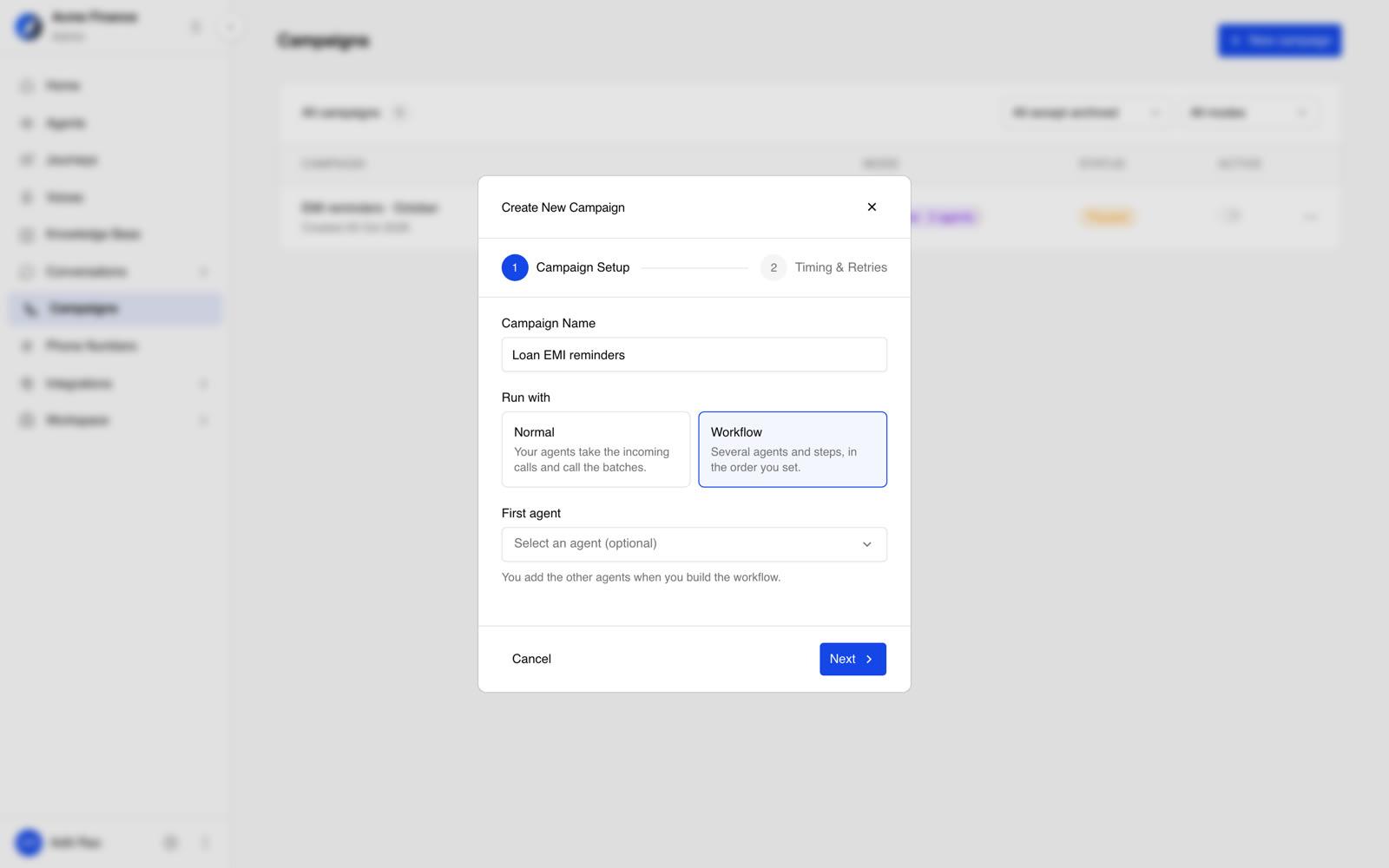 Pick Workflow when the campaign needs more than one step.
Build the follow-up on one canvas
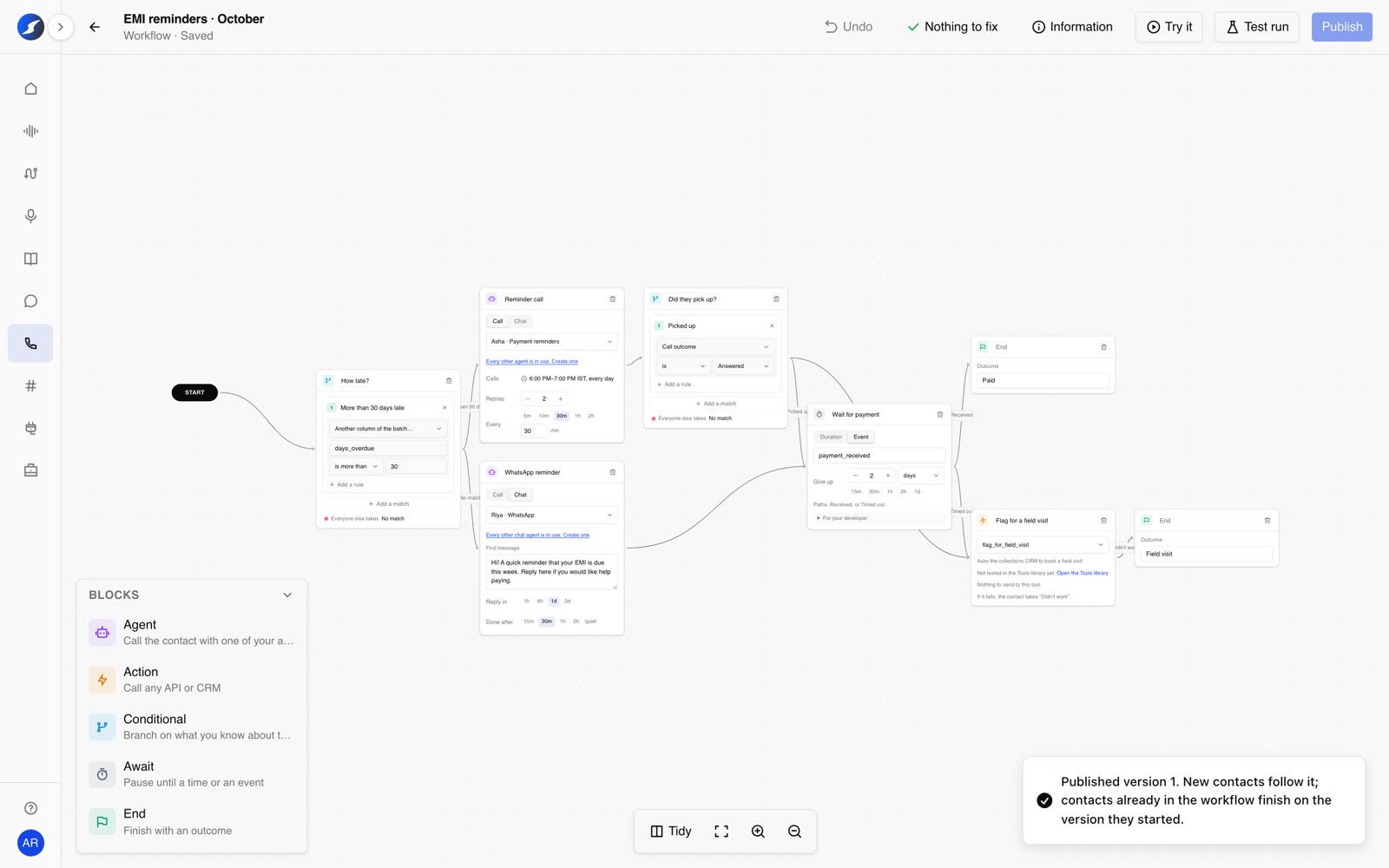
A workflow is a set of blocks joined by paths. You start from START, press + on any block to add the next one, and set each block up right on its card. Nothing is hidden in a side panel or a settings page.
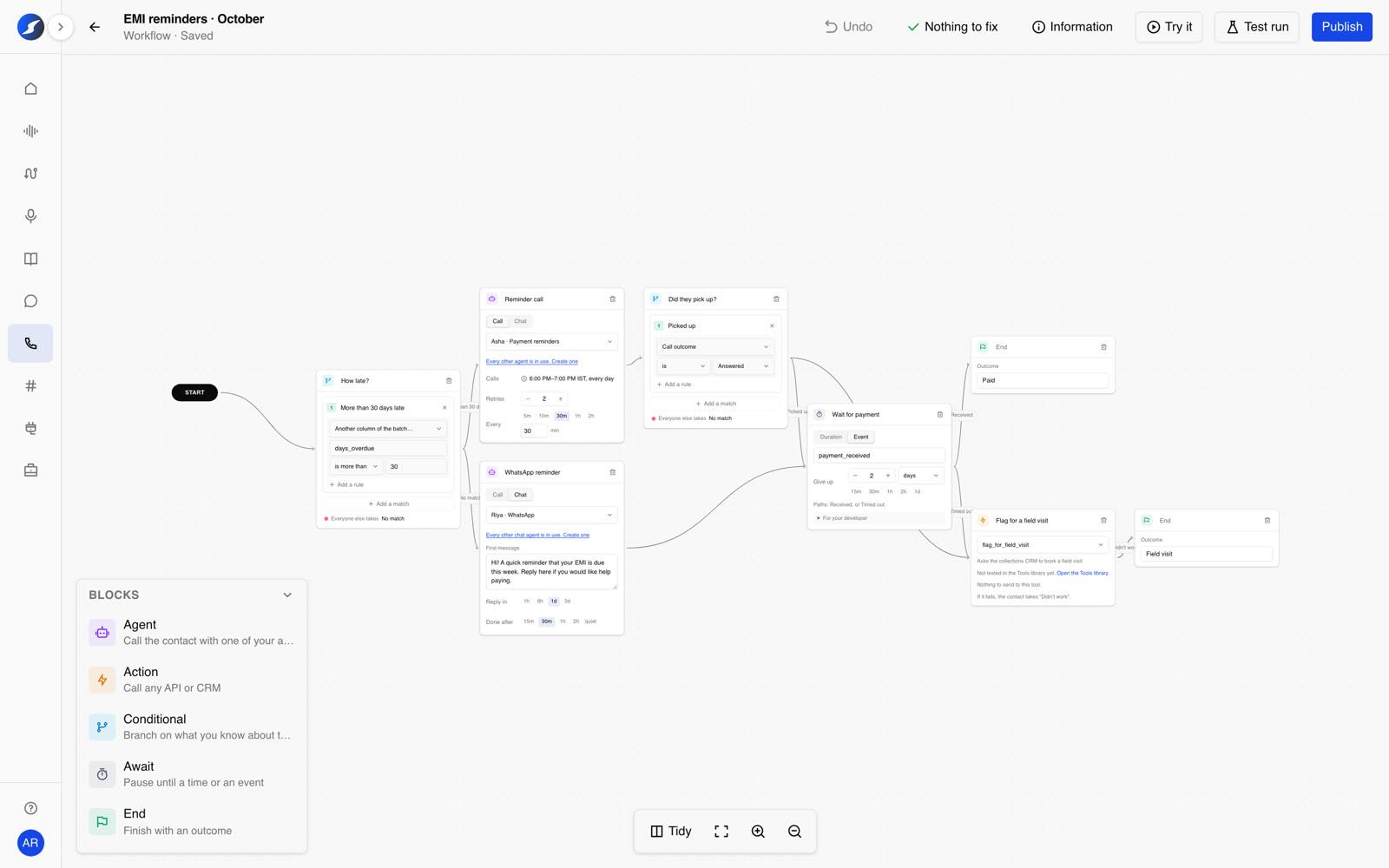 An EMI reminder workflow: late payers get a call, everyone else a WhatsApp reminder, and both wait for the payment.
There are five blocks:
- Agent: one of your agents calls the contact or chats with them. A call step can retry when nobody answers ("2 more tries, 30 minutes apart"), and if the contact asks to be called back, the same step calls them back. A chat step sends the first message you write, waits for a reply and ends once the conversation goes quiet.
- Conditional: sends contacts down different paths based on what you know. That can be a column from your uploaded list (
days_overdue), what the agent learned on the call ("interested", "promised to pay"), whether the call was answered or whether they replied to the chat. - Await: pauses a contact for a set time, or until an event arrives from your own systems, such as a payment received or a form submitted, with a time limit after which they move on anyway.
- Action: runs a tool from your Tools library: update your CRM, create a ticket, book a field visit. If the tool fails, the contact takes the "Didn't work" path instead of getting stuck.
- End: names the outcome, like Paid or Field visit. That's what Logs and your numbers report.
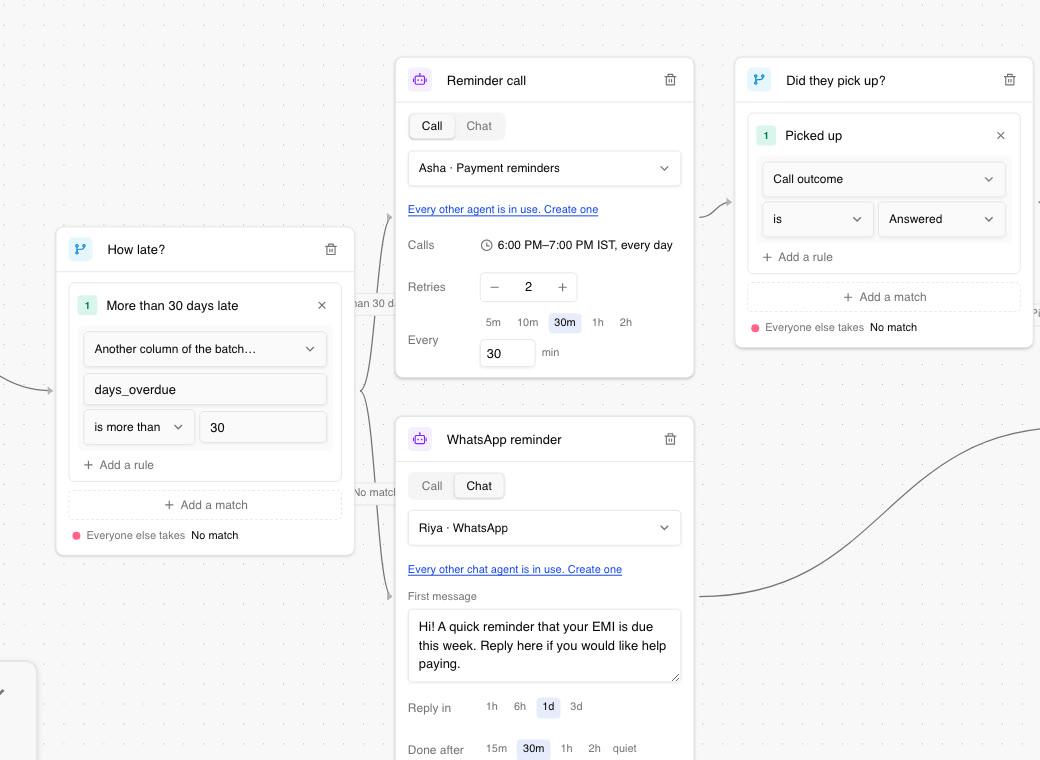 Every card says what it does without opening it: who calls, how often it retries, what the first message says.
Try it before anyone gets a call
Workflows branch, and branches are where mistakes hide. So the editor checks itself as you build. If anything is missing, like an End without an outcome or a path that leads nowhere, it shows in Things to fix, and Publish stays locked until the list is empty.
Try it walks a pretend contact through the draft. You choose what happens at each step (they answer, they reply, the payment doesn't arrive in time) and it shows the path they'd take and where they'd end up. Nobody is called or messaged.
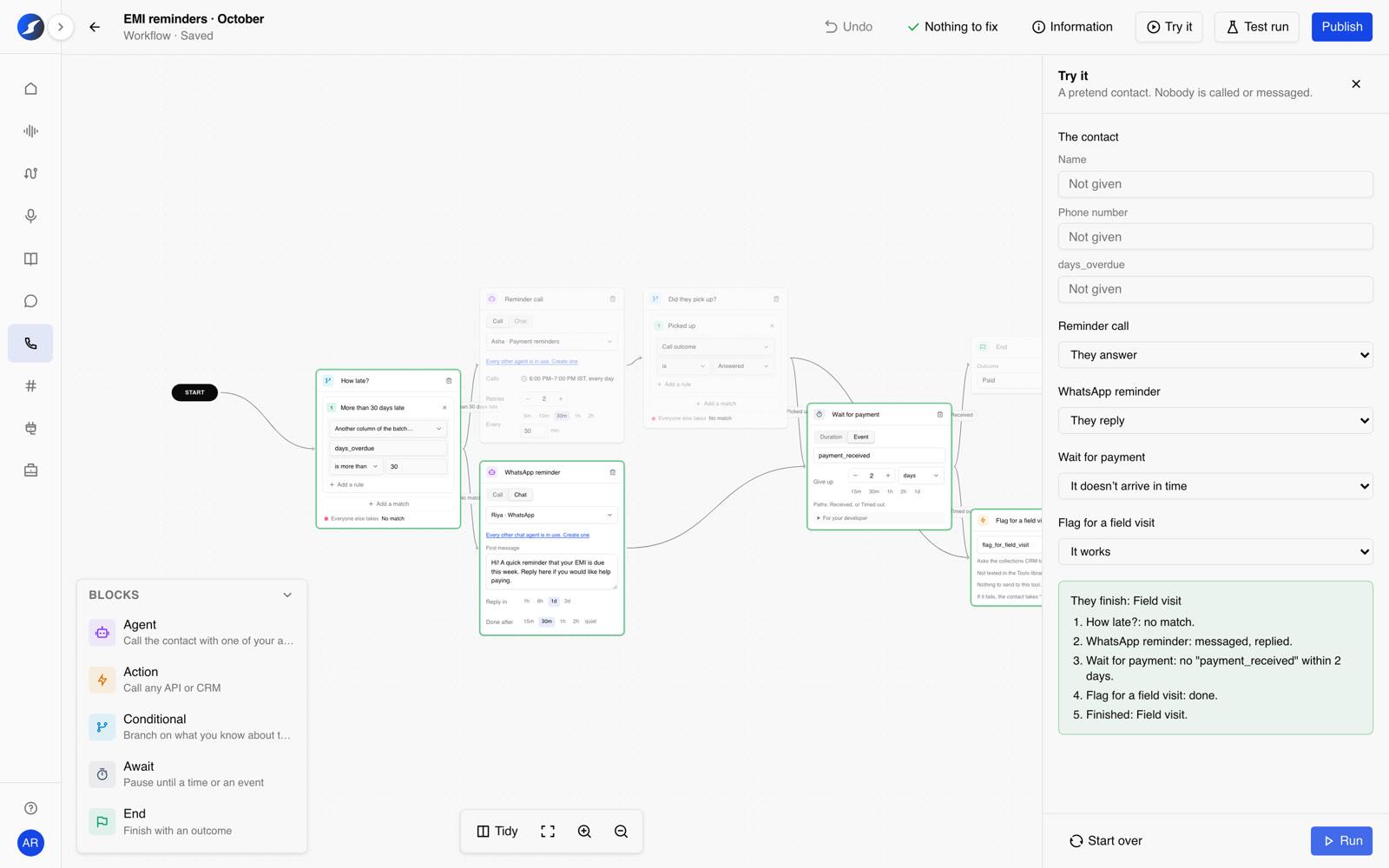 Try it highlights the path and says, step by step, what would happen.
When you'd like to hear it for real, Test run sends the saved draft to your own number, kept apart from the real contacts and their numbers.
Publish, then run batches
Publishing turns the draft into a numbered version. New contacts start on the latest version, and anyone already in the workflow finishes on the version they started. So you can improve a live campaign without breaking the people in it.
From there it works like any campaign: upload a batch of contacts (a CSV with person_name, phone and any columns your workflow uses) and start it. The campaign's calling hours, days and time zone still decide when calls go out, and pausing the campaign holds everyone where they are until you resume it. A number already in progress isn't started twice.
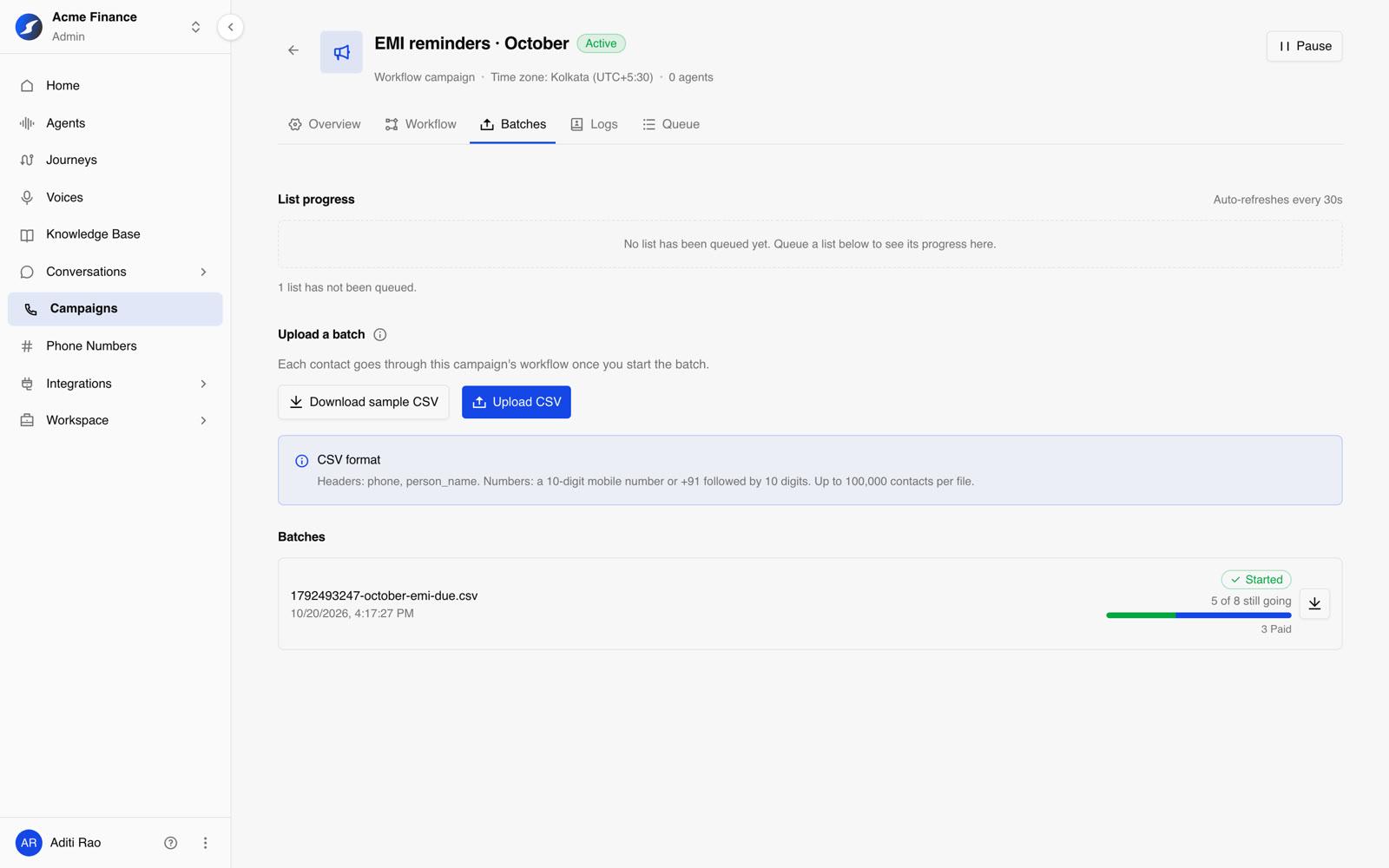 Each batch shows how many contacts are still going and how many have finished, and with which outcome.
Logs that read like a story
The Workflow tab shows the live workflow as a map, with a count on each block of who is there right now. That's where you see where contacts stall or drop off, like dozens still waiting for a payment, and clicking the count opens exactly those contacts.
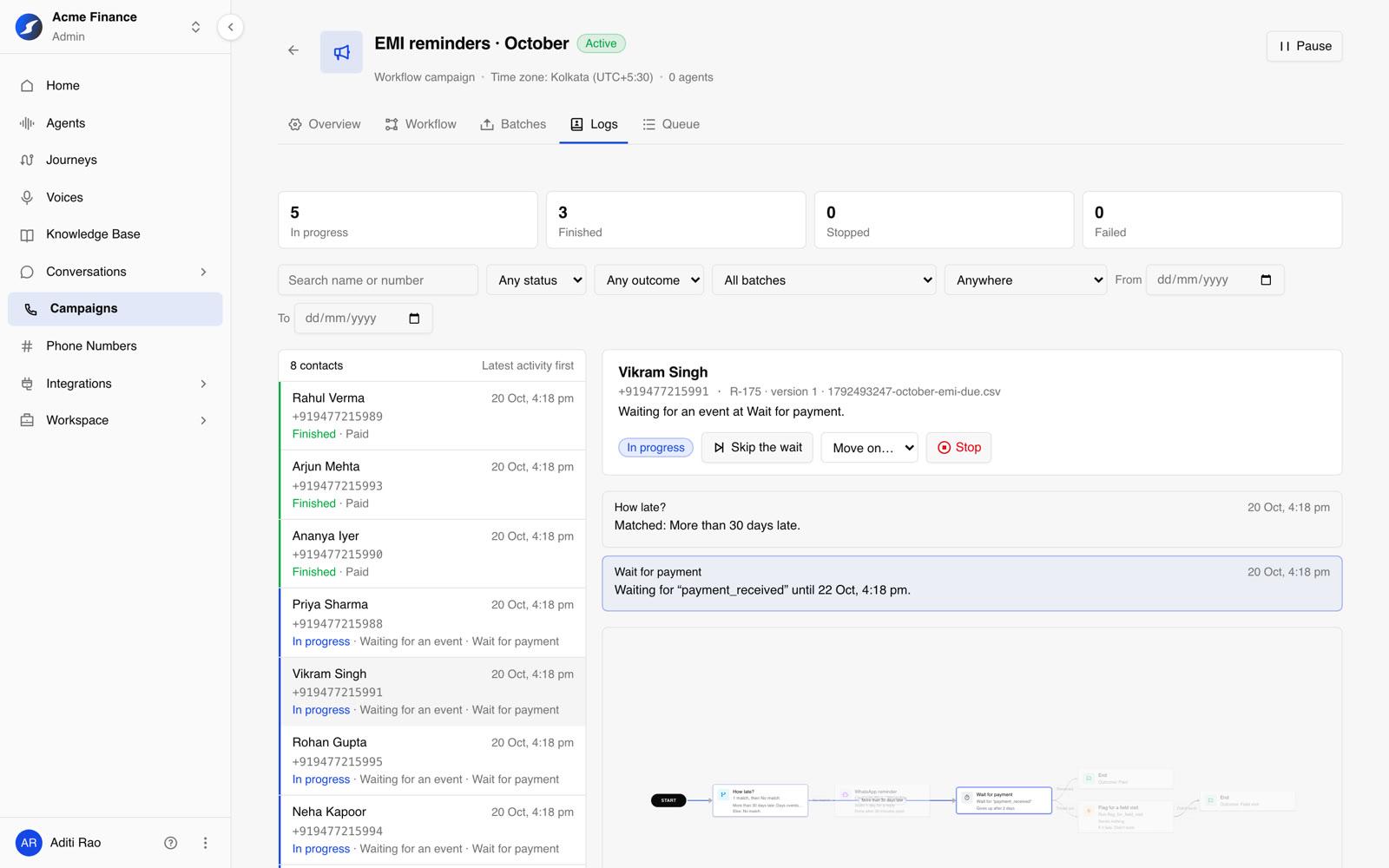
Logs lists every contact with one line about where they are or how they finished. Click anyone, and their whole story opens beside the list in plain words, with their path lit up on the map: which path they took, what each call or chat did, what they were waiting for and how it ended. Calls link straight to the recording and transcript, and chats to the conversation.
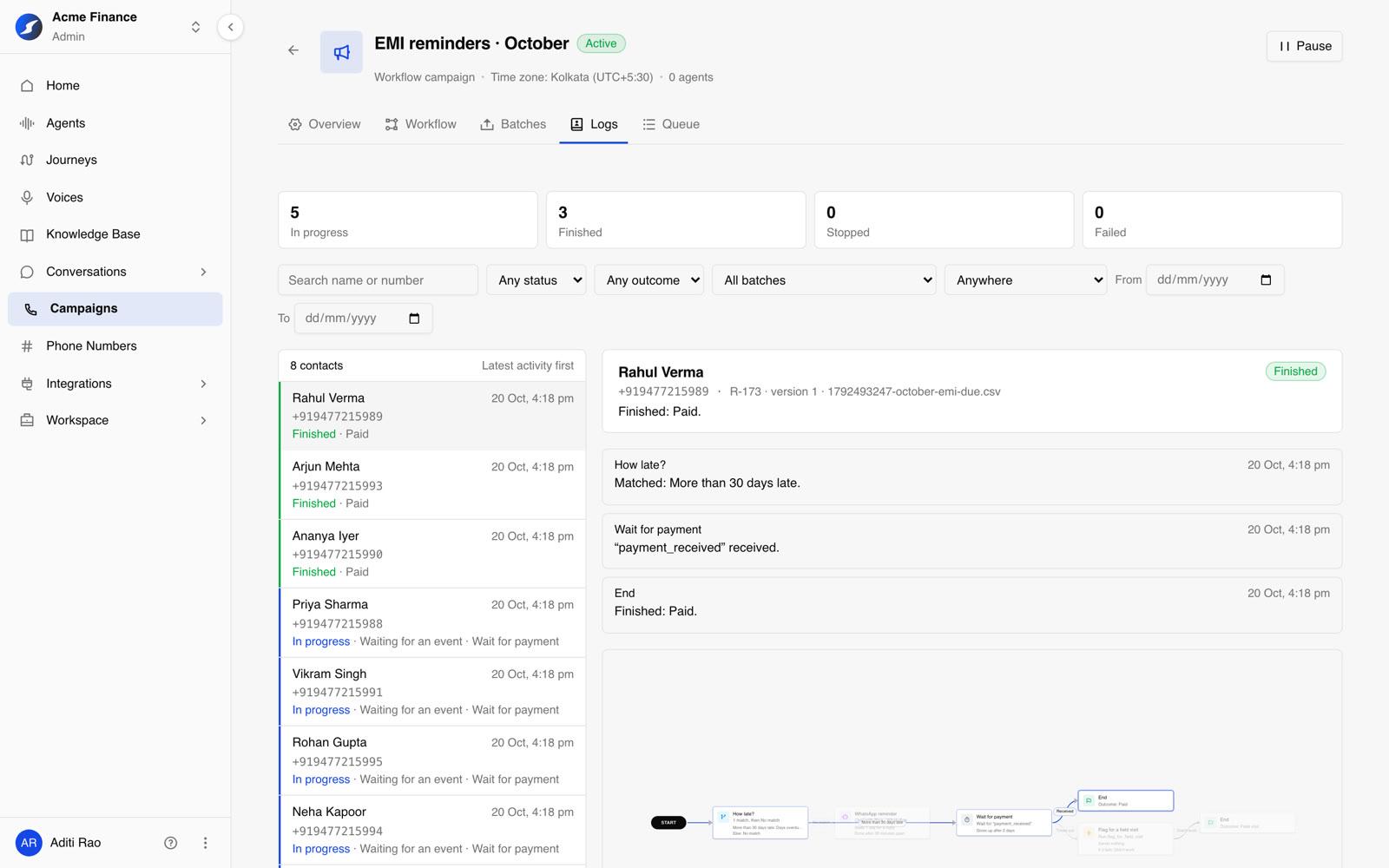 Use ↑ and ↓ to move through contacts, like reading through a log.
If someone needs a hand, you can step in from their story: stop them, skip the wait, or move them on down a path you choose.
The numbers, on the Overview
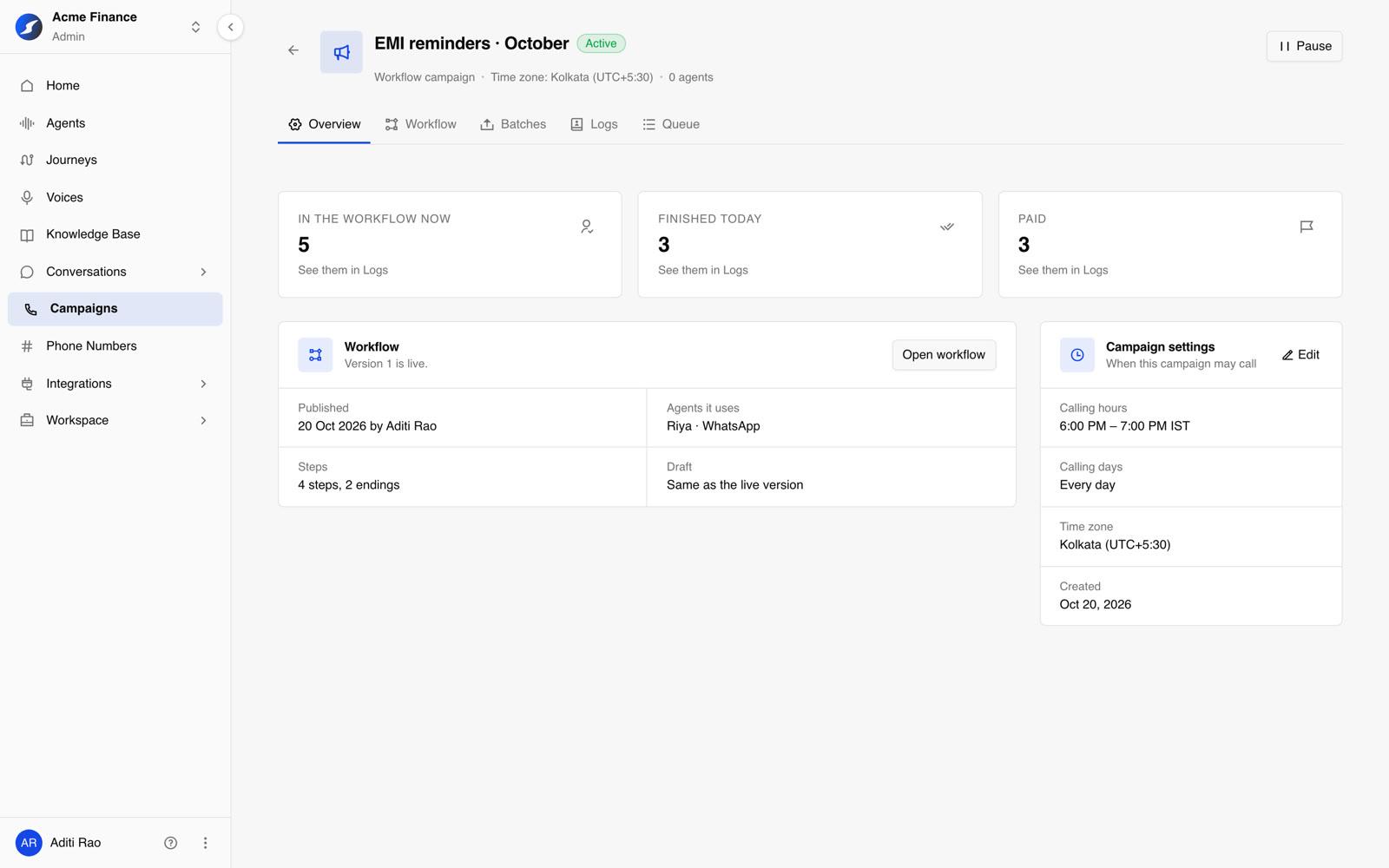
The campaign's Overview leads with what matters: how many contacts are in the workflow now, how many finished today and how each outcome is doing. Every number opens Logs on exactly the contacts it counts.
For your developers: tell a workflow what happened
An Await block can wait for anything your systems know about. When it happens, send one request:
curl -X POST https://api.osvi.ai/v1/campaigns/{campaign_id}/events \
  -H "API-Token: $OSVI_API_TOKEN" \
  -H "Content-Type: application/json" \
  -d '{
        "event": "payment_received",
        "phone": "+919876543210",
        "data": { "amount": 8450 },
        "client_event_id": "txn_8812"
      }'
The contact waiting for that event moves on straight away, and a later Conditional can branch on what you sent (amount over 5,000, for example). Sending the same client_event_id again is safe: it's recognised as the same event, so a retry never moves anyone twice.
Get started
Campaign Workflows is rolling out now. Ask your Osvi contact to turn it on for your workspace, choose Workflow the next time you create a campaign, and build the follow-up you've been running in a spreadsheet.